

I’ve found Word’s Format painter a handy tool for many years – a quick Ctrl-Shift-C and Ctrl-Shift-V to copy and paste a style from one place to another (repeatedly) has been a quick and handy solution. Last year I discovered the shortcuts no longer worked in the same way, and I’ve been meaning to sit down and take a look at it when I have time. Today was that day!
What Ctrl-Shift-V now does by default
As it stands now by default in Word, the old Ctrl-Shift-V will paste text you’ve copied (Ctrl-C) from elsewhere, with the original formatting stripped from it. So the newly pasted text immediately adopts the style of the location you’re pasting to.
New Format painter keyboard shortcuts
But there are new shortcuts that will do the old job! These are now:
- Ctrl-Alt-C – copy format
- Ctrl-Alt-V – paste format.
Getting the old keyboard shortcuts working again
If, like me, it feels too hard to try to remember a new shortcut (and you’re struggling to make your fingers do the new combo at speed), the good news is you can set your template up to revert to the old Ctrl-Shift-C and Ctrl-Shift-V.
To change your Format Painter keyboard shortcuts back to Ctrl-Shift-C and Ctrl-Shift-V:
- Go to File > Options > Customize Ribbon.
Result: the Word Options popup displays.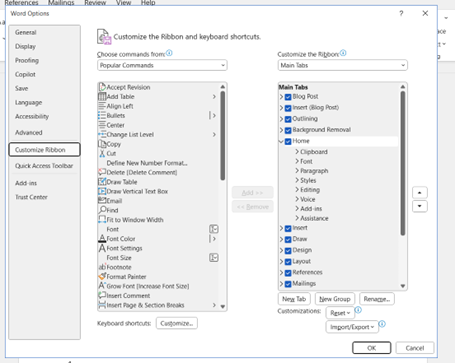
- Go to Keyboard shortcuts at the bottom of the Commands column.
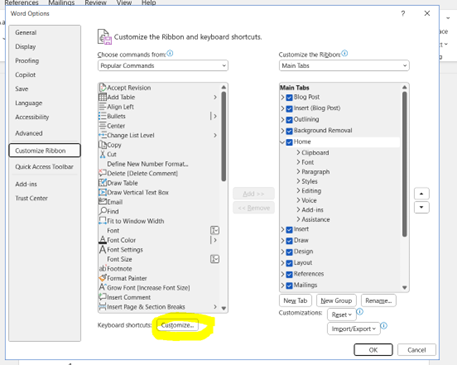
- Click the Customise button.
Result: the Customize Keyboard popup displays. - Go to the Categories column.
- Click All Commands.
- Select CopyFormat in the right column.
- Go to Current keys, and select Alt+Ctrl+C.
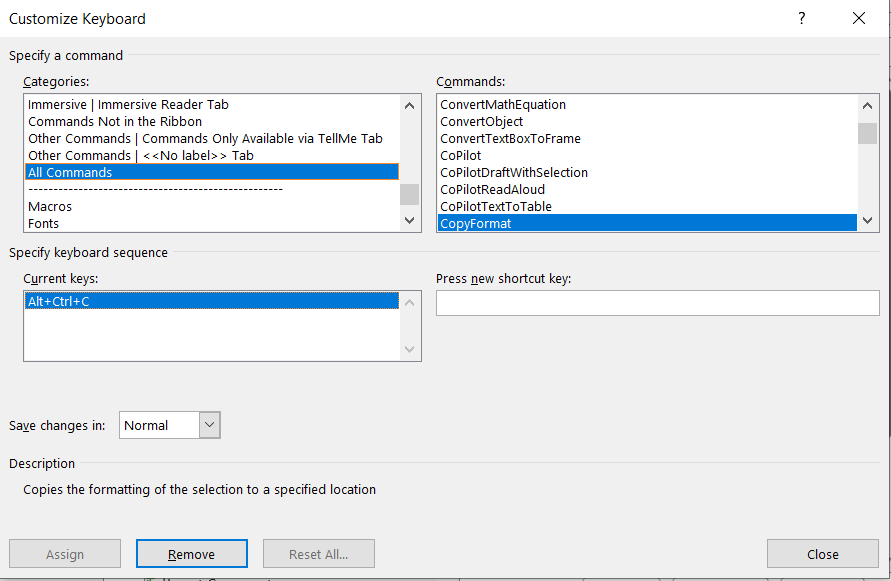
- Click Remove.
- Click in the Press new shortcut key field.
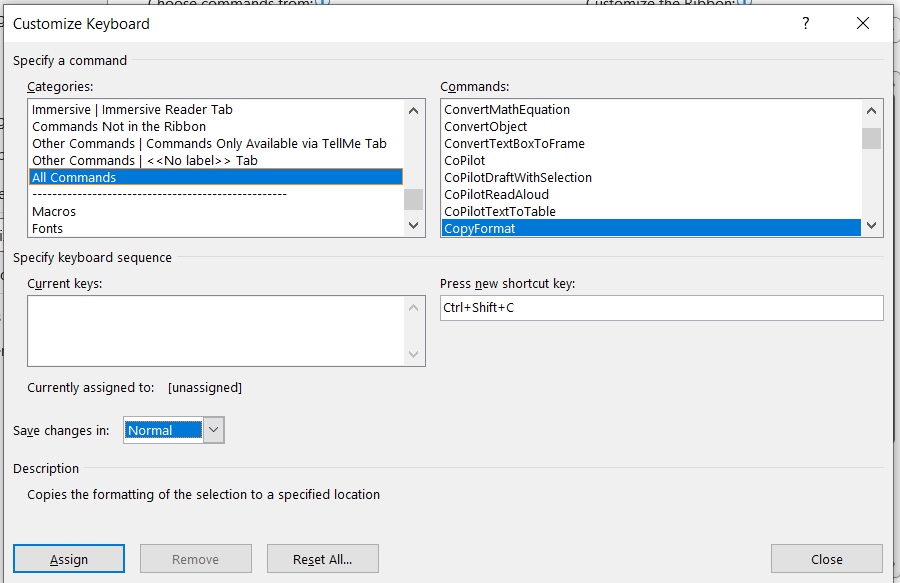
- Press the keys Ctrl Shift C (or a different combination if there’s something you’d rather change it to).
- Go to the Save changes in dropdown.
- Select the document or template you’d like this change to apply to.
Note: if you’d like this to apply to all your Word documents, select the Normal template. - Click Assign.
Result: Ctrl Shift C is now set as your Format Painter copy keyboard shortcut. - Select PasteFormat in the right column.
- Go to Current keys, and select Alt+Ctrl+V.
- Click Remove.
- Click in the Press new shortcut key field.
- Press the keys Ctrl Shift V (or a different combination if there’s something you’d rather change it to).
- Go to the Save changes in dropdown.
- Select the document or template you’d like this change to apply to.
Note: if you’d like this to apply to all your Word documents, select the Normal template. - Click Assign.
Result: Ctrl Shift V is now set as your Format Painter paste keyboard shortcut. - Click Close.
 Em Rule